Pointer gestures
Many of today's user interfaces require us to perform gestures beyond pointing and clicking. The popularity of touchscreen devices has also meant that many of us have had to learn new gestures using our fingers to perform actions that were otherwise impossible to perform using the keyboard.
Some people may find these gestures challenging to do accurately or cannot perform the gesture at all. For example:
- People with limited dexterity or hand tremors may find it difficult to swipe, drag, or pinch, particularly if successful completion of the gesture depends on fine motor movements.
- People who use a head wand may only be able to perform comparatively simple gestures, and even then may encounter fatigue if a task requires multiple gestures.
- People with cognitive or learning disabilities may theoretically be able to perform the required gesture, but may not understand how to perform it.
Understanding Pointer Gestures
The main types of pointer gestures are as follows:
Single pointer gestures
- Clicking: including double-clicking. Tapping: including double-tapping.
- Pressing: including press and hold.
- Swiping: if the angle of the swipe is irrelevant for operating the control.
Multi-point gestures
- Pinching/spreading two fingers — including pinch-to-zoom within a map application.
- Two-finger rotation — including two-finger rotating to operate a dial control.
- Tapping using more than one finger — including the selection of multiple items in a list.
Path-based gestures — involve an initial “down” press of the pointer, followed by a movement of the pointer along a specific path.
Dragging movements — involves grabbing, picking up, or otherwise selecting an item and moving it elsewhere.
Use Single-Pointer Gestures
In order to be accessible, gestures and interactions must account for people with physical and motor disabilities, who might have unpredictable or very specific movement.
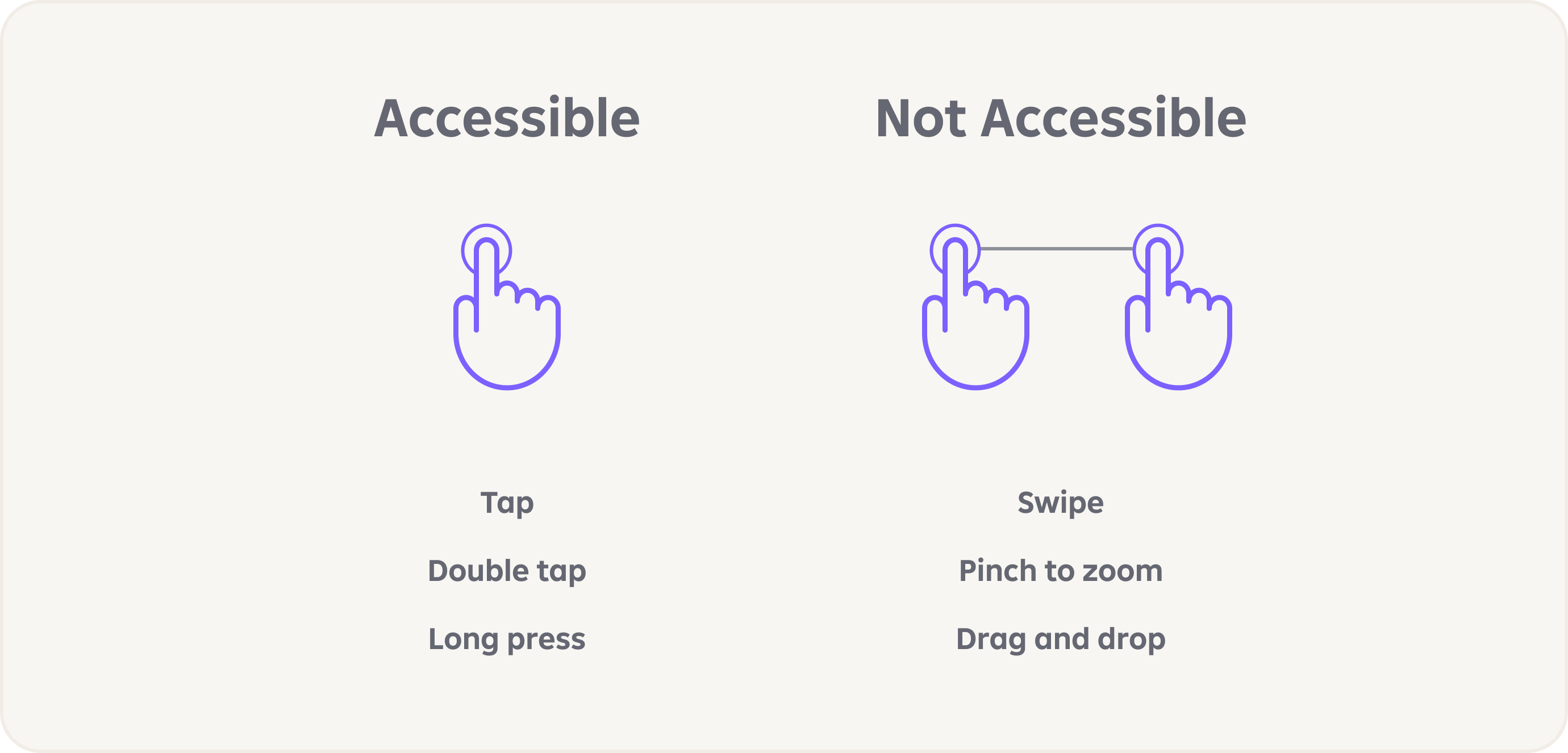
Path-based gestures, such as drag and drop, swipe, or pinch to zoom, require precision in order to work. These gestures are inaccessible to people with motor disabilities and can also lead to a lot of errors, which feels frustrating and could lead to serious consequences. Therefore, use single-pointer gestures as the default interaction. If there are path-based gestures, make sure there is a single-pointer alternative. (WCAG criterion 2.5.1 Pointer Gestures (Level A).
Recommended Touch Area Size
We recommend using a tap button instead of a swiper. A tap button requires a simple action of pressing or tapping, which can be more comfortable for individuals with limited dexterity or motor disorder. Tapping a button provides a clear, defined target for users, reducing the chances of accidental inputs or errors. It eliminates the need for precise movements or gestures. Tap buttons can work well with various assistive technologies, such as switch devices, which allow users with disabilities to control electronic devices by pressing buttons or switches.

Recommendations (Swiped List Cell)
We recommend not to use swiped list cell or any replacement instead.

Conclusion
When implementing interactive content, using interface controls that can be operated using a single pointer gesture and don't require any dragging — be it freeform or following a specific path — is the easiest and most accessible solution. Most components that people are familiar with, such as buttons, links, and form controls like checkboxes and radio buttons, all support single pointer gestures for operation.
If you must use controls that can only be operated using multi-point gestures, path-based gestures, or dragging movements, include additional controls within your designs that allow people to complete the related tasks using a single pointer, non-path-based, gesture that does not require any dragging.